From the WCOA 2026 virtual booth
Start your AI Time Audit
AI promises to save time. Find out where that time actually goes, and what it's worth to your firm.
Free calculator below · Your numbers stay in your browser
- × Saved time quietly disappears
- × No baseline to compare
- × Pricing hasn't changed
- × Nobody has the data
- × Freed hours go to admin
- × AI work isn't tagged
The AI productivity paradox
When work gets faster, saved time doesn't automatically become value.
It can turn into more client work, new advisory services, or internal admin, or it can quietly disappear.
- More client work
- New advisory services
- Internal admin
- Quietly disappears
Most firms can't tell which, because they never measured how long the work took before.
Where did the time go?
Enter a workflow. We filled in an example to start.
Where will these hours go?
Your numbers stay in your browser.
The 6-step method
- 01
Pick your workflows
3–5 recurring workflows where AI is used or tested.
- 02
Set your baseline
How long each takes today, who does it, how much is billable.
- 03
Tag AI-assisted work
Track it separately for 30 days.
- 04
Follow the freed-up time
Client work, advisory, admin, or unaccounted?
- 05
Translate hours into value
What it means for capacity, margins and pricing.
- 06
Decide
Scale, reprice, redeploy, or stop.
Run the audit without spreadsheets
- Workflows
- Projects
- AI-assisted work
- Tags
- Baseline and comparison
- Estimates vs. actuals and reports
- Billable vs. non-billable
- Built-in billable tracking
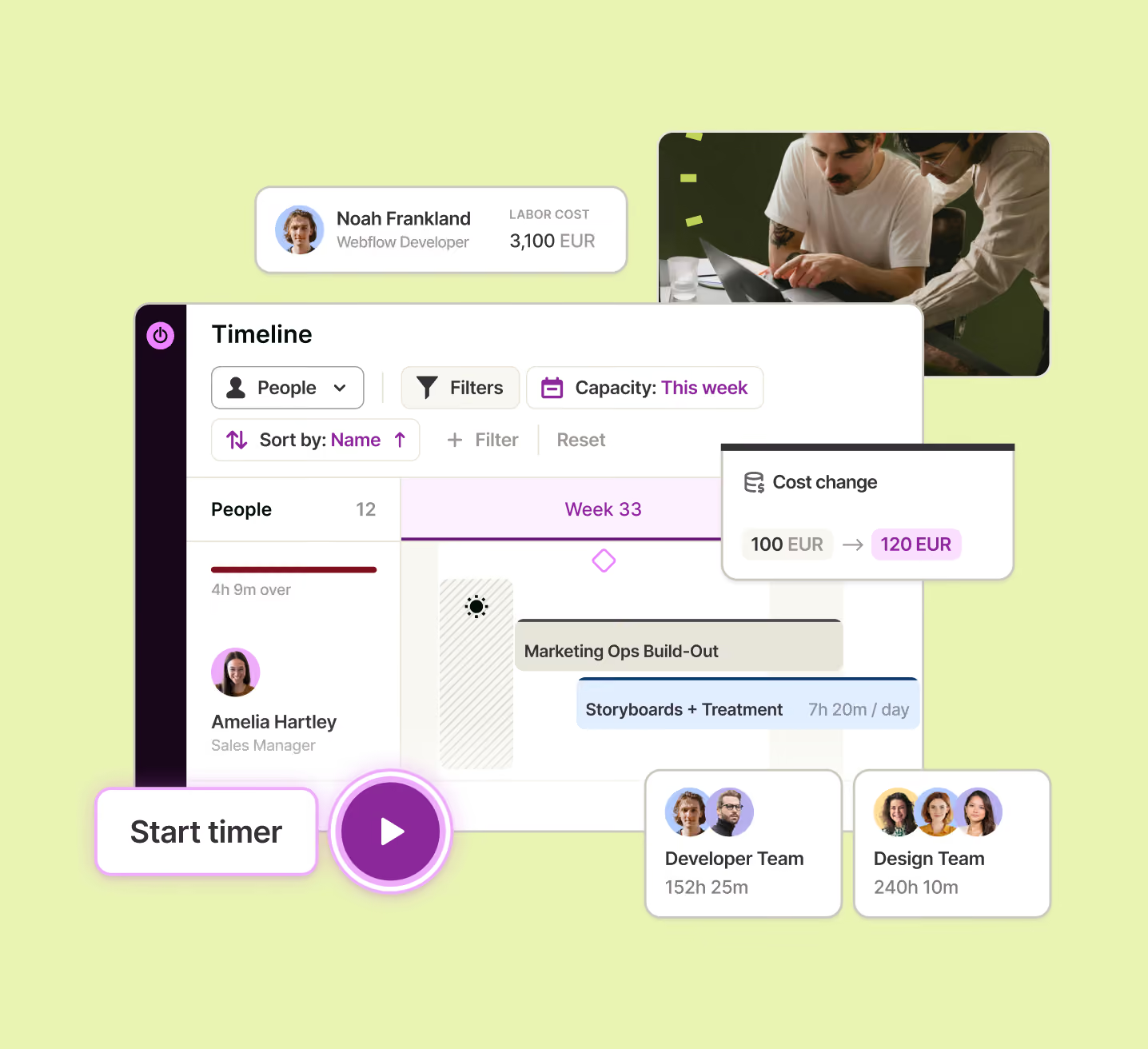
- Redeploying capacity
- Capacity planning
Set up in 10 minutes
- 1Create a project for each workflow
- 2Add an "AI-assisted" tag
- 3Set estimates from your baseline
- 4Track for 30 days, then compare in Reports
Planning for busy season?
Busy Season Without Burnout
Get the guideThree phases, nine steps, four worksheets.
Four printable pages you fill in by hand: plan before the peak, protect during it, learn after. Aim to keep everyone at or below about 80% planned load.
Before the peak
Plan
- 1Map your deadlines
- 2Know your real capacity
- 3Allocate fairly
During the peak
Protect
- 4Watch the early warning signs
- 5Rebalance early
- 6Check in weekly
After the peak
Learn
- 7Compare plan vs. reality
- 8Fix the root causes
- 9Recognize the effort
- A
Team capacity map
Who has room, and who doesn't
- B
Deadline and workload plan
Every job, its hours and its backup
- C
Weekly early warning checklist
Five signs that overload is coming
- D
After-season review
Plan vs. reality, and what to change
Know where your time goes. Know what it's worth.
Over a million users have trusted us
G2
High Performer
Fall 2026
G2
Best Est. ROI
Fall 2026
- C
4.7/5 from 2.3k reviews
Capterra
Voted best ease of use
2256 reviews
- G2
4.6/5 from 1.5k reviews
G2
Leader
Fall 2026
G2
Fastest implementation
Fall 2026